FIELD GUIDE 02 / SORBUS MUSIC APP
Let the whole
idea play.
Sorbus is a music workspace for iPad. Arrange MIDI and audio, edit notes by touch, build sounds, and connect the instruments around you in a sixteen-track project.
Explore Sorbus for iPad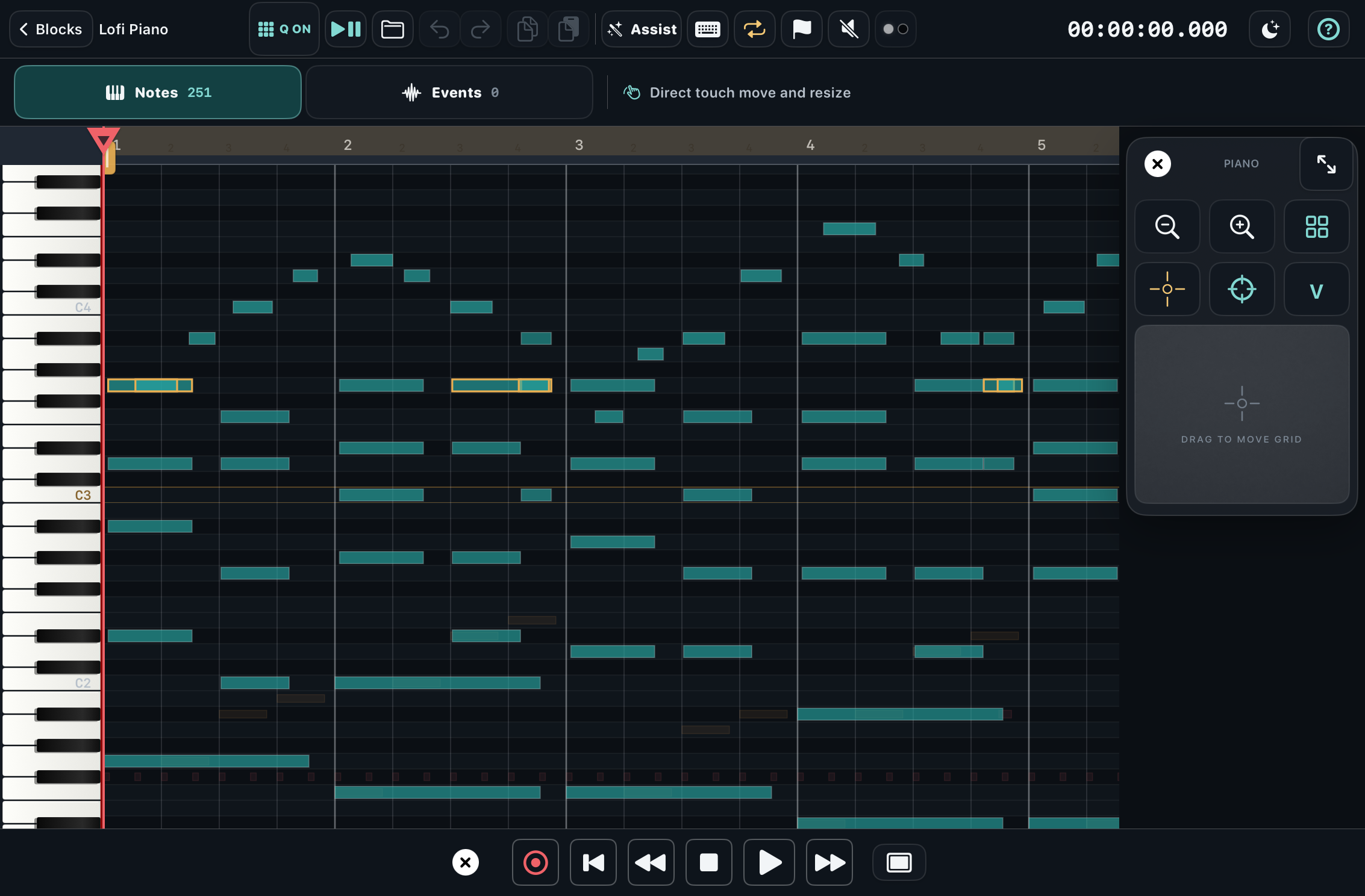
- Made for
- iPad · landscape
- Requires
- iPadOS 18 or later
- Access
- Free download · optional Full App purchase
Find a way into a piece
You can begin with a melody, a rhythm, a recorded sound or an instrument outside the iPad. There are four track kinds to work with:
- Instrument — MIDI notes played through a sound source.
- Drum — rhythmic patterns and drum sounds.
- Audio — recorded or imported audio in the arrangement.
- External MIDI — notes routed to connected instruments, with routing options for internal instruments and drums too.
Start with one track and a short phrase. Add another part when the first suggests it. Use the arrangement to put your MIDI and audio together, then the sixteen-channel Mixer or compact channel panel to balance them.
Shape notes, rhythm & sound
Work directly with the notes
The Piano Grid lets you shape pitch, timing, length and velocity by touch. Voiced chords offer another starting point for harmony, while Groove Loom gives you a way to explore rhythmic patterns.
Follow a sound somewhere new
Explore the ATX-7 six-operator FM synthesiser, use Audio Unit instruments, or shape a track with effects. Galactic Whisper is a convolution effect with built-in spaces and support for your own WAV impulse responses. Afterimage explores feedback and repeating sound.
There is a little more of the thinking behind that last effect in Geometry remembers.
Bring other instruments along
Use MIDI Routing to choose inputs and sync destinations. Audio input, output and monitoring settings let you work with supported USB audio interfaces. Recording from a microphone requires microphone permission.
Leave a little room for the accident.
Sometimes it is the beginning of the piece.
Save the idea
- Choose Project › Save Project or Save Project As.
- Choose a location in the Files app. That might be on your iPad or in a storage provider you use, such as iCloud Drive.
- Use Open Project when you want to return to it.
You can export arrangement MIDI separately from the Sorbus project file. Keep the project itself when you want to carry on working with its arrangement and sounds.
For detailed controls, use the searchable guide inside Sorbus. The public support page covers projects, MIDI, audio and purchases.
A few useful answers
Is Sorbus a browser app?
The music app runs on iPad in landscape and requires iPadOS 18 or later. Visit the Sorbus App Store listing for availability and the current version.
What does the Full App purchase do?
The free download includes all sixteen tracks and the current features. The single Full App purchase removes occasional reminders and supports development. There is no subscription. The App Store shows the price for your region.
How do I restore a purchase?
Open Studio › Full App › Restore Purchases, using the Apple Account that made the original purchase.
Where does my music go?
The app does not upload your music to Sorbus and has no advertising or analytics. Projects are saved where you choose in Files; a cloud storage provider follows its own settings. Read the Sorbus privacy page for details.
Where can I get help?
Use the in-app guide, visit Sorbus support, or email support@sorbus.app.